
Claude Desktop · Windows
Visual Windows setup guide
Follow each screenshot in order. Steps 1–4 connect Claude Desktop to your API key. Steps 5–8 are optional and only needed if Claude reports a Virtual Machine Platform or workspace/hypervisor error.
Connect Claude Desktop
Complete these four steps first. Interface wording can vary slightly between Claude Desktop versions.
- 1
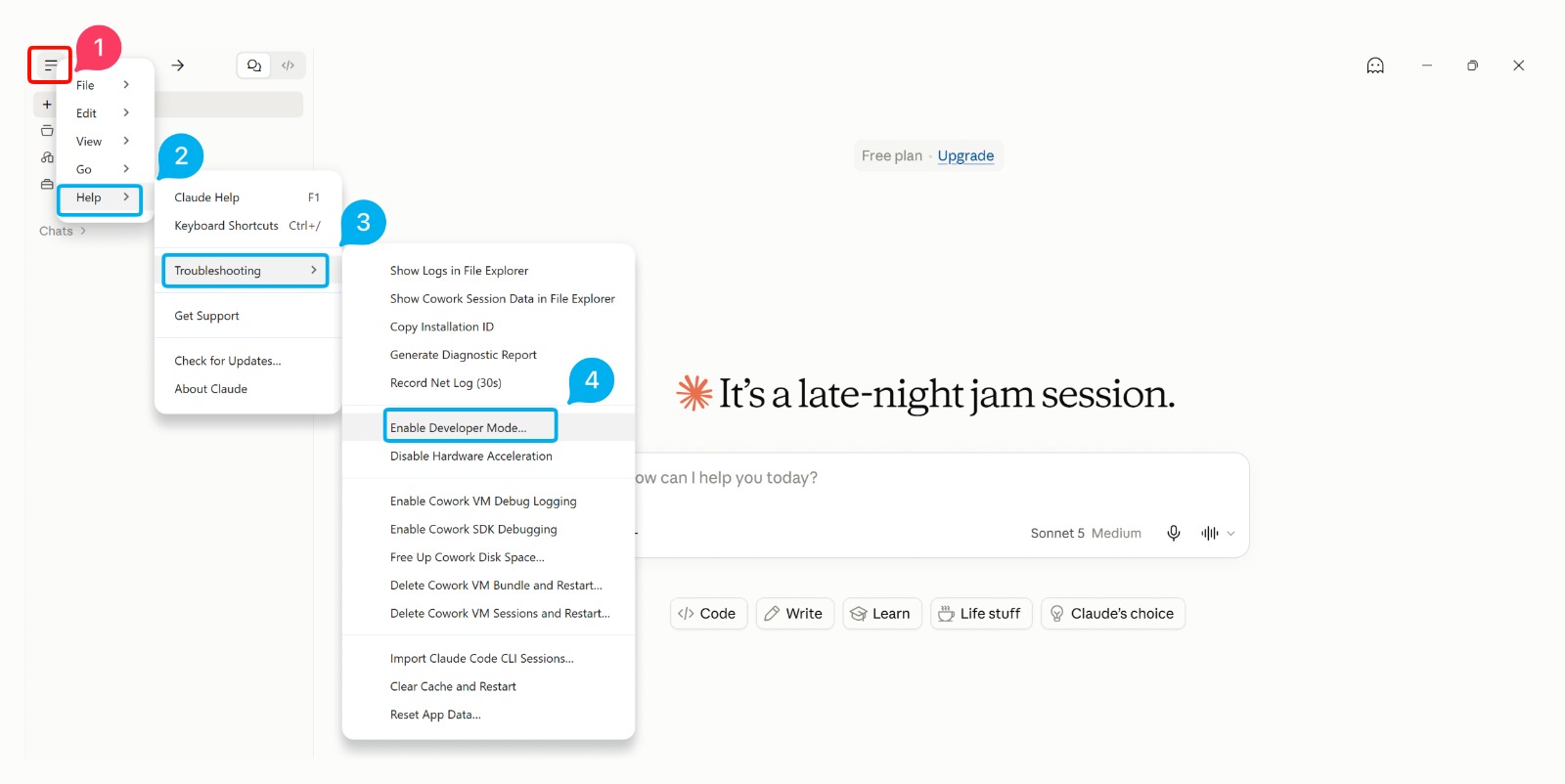
Enable Developer Mode
Open the three-line menu ☰, then choose Help → Troubleshooting → Enable Developer Mode.
Open full-size image - 2
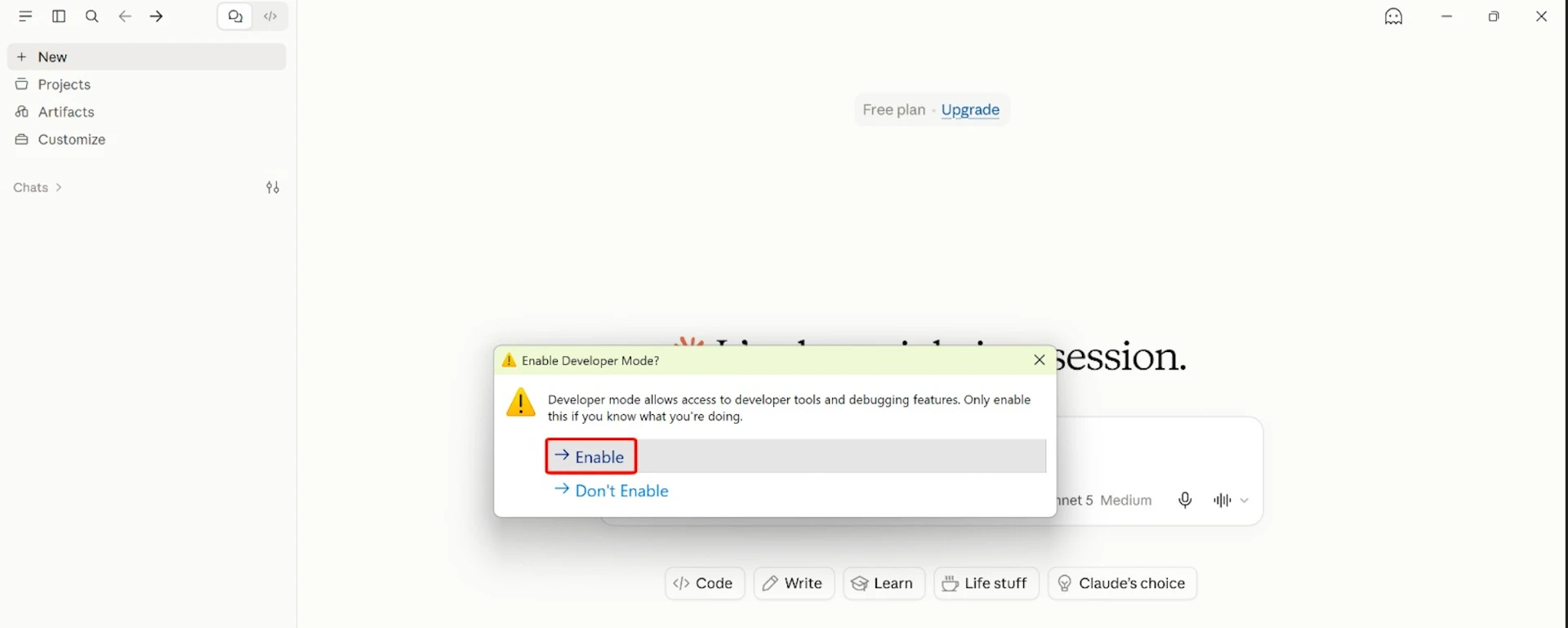
Confirm Developer Mode
In the confirmation window, choose Enable. Allow Claude Desktop to restart if requested.
Open full-size image - 3
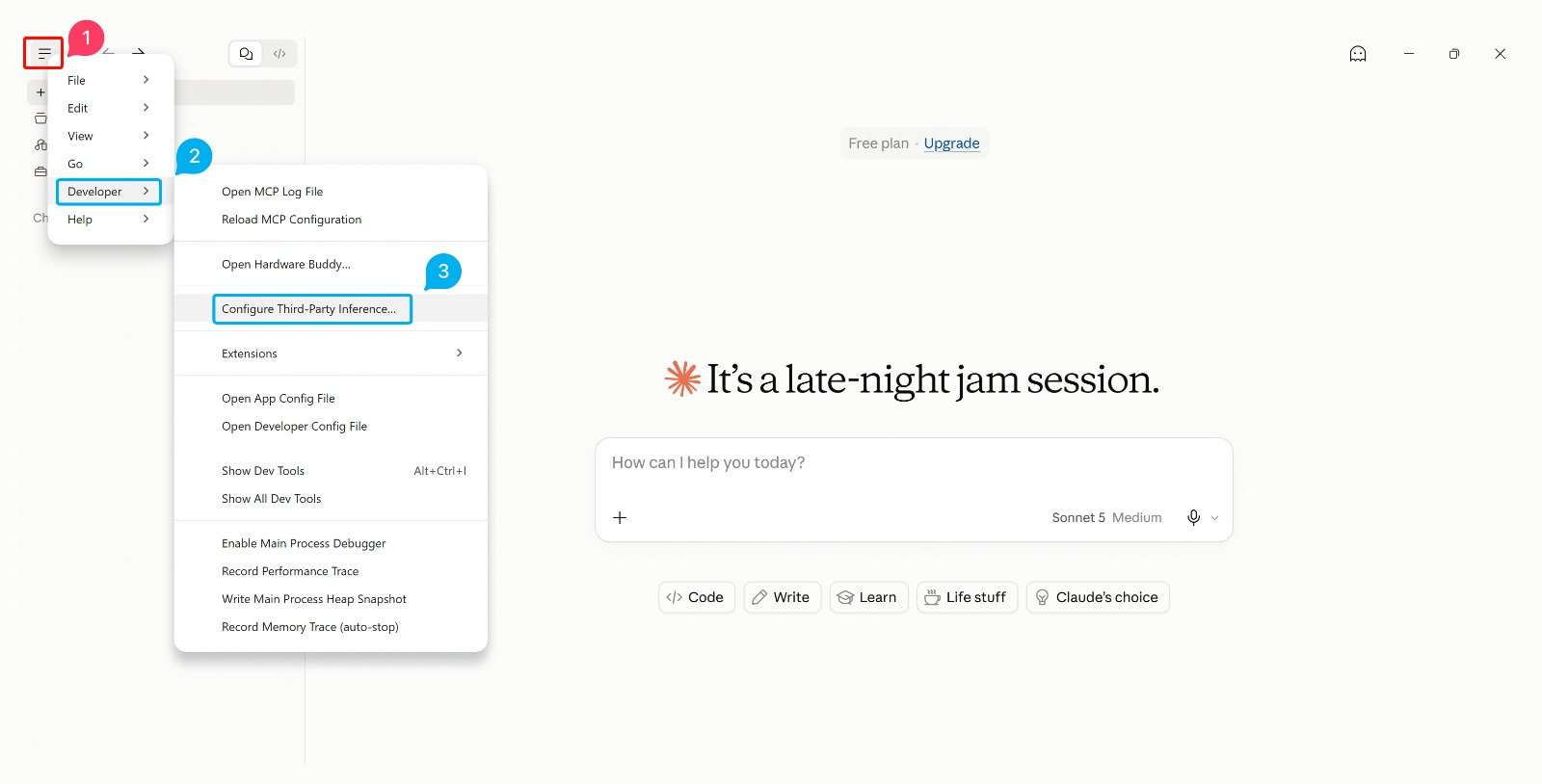
Open Third-Party Inference
Open the three-line menu ☰ again, then choose Developer → Configure Third-Party Inference. Do not use Settings → Developer → Edit config; that is for MCP configuration.
Open full-size image - 4
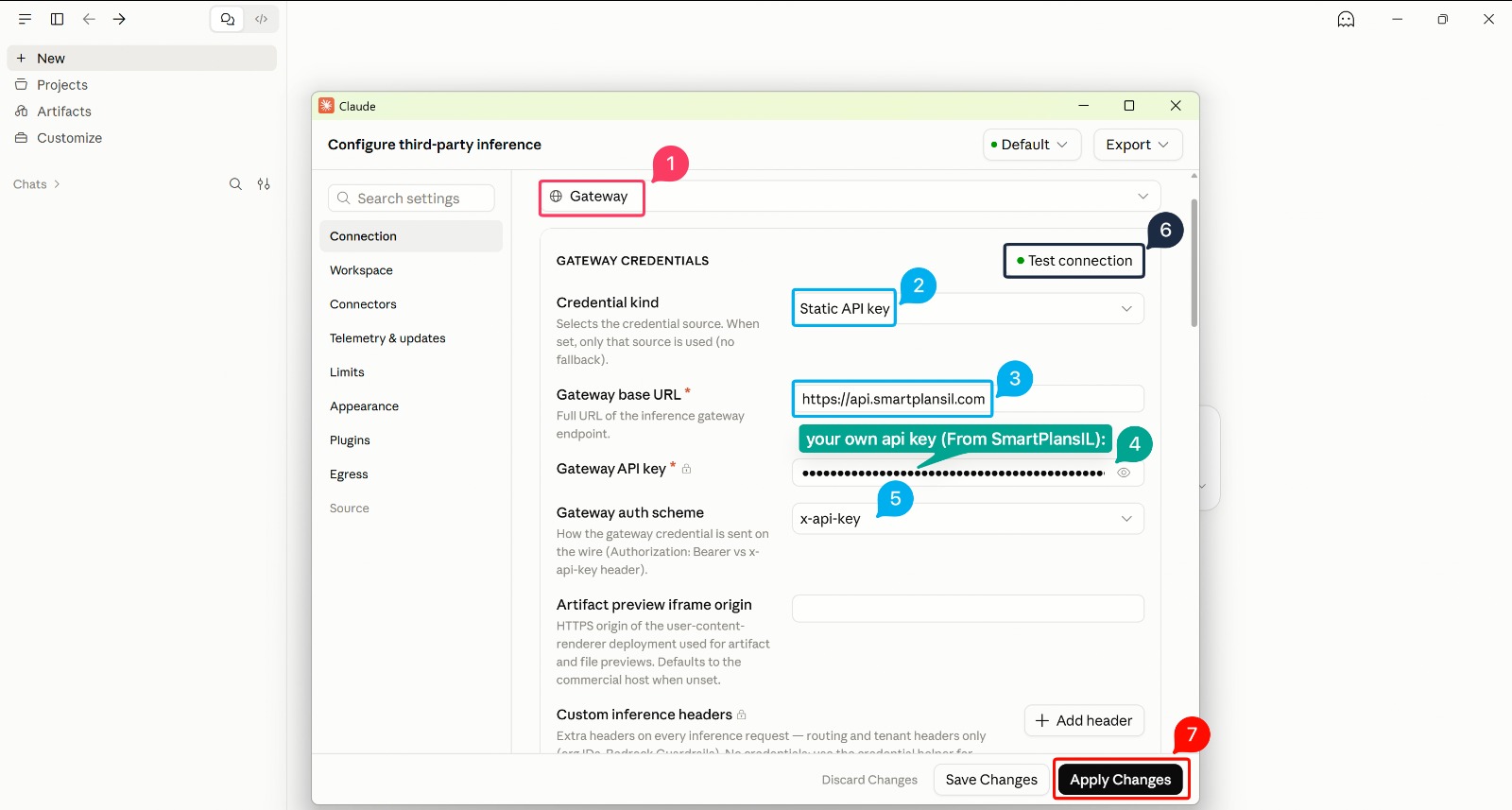
Enter and apply the connection
Choose Gateway and Static API key. Set the base URL to https://api.smartplansil.com, paste the API key you received, and choose x-api-key. Leave Artifact preview iframe origin and Custom inference headers empty. Select Test connection, then Apply Changes. Do not add /v1 to the URL.
Open full-size image
Enable Virtual Machine Platform
Skip this section unless Claude specifically reports that Virtual Machine Platform is required or the workspace/hypervisor failed to start.
- 5
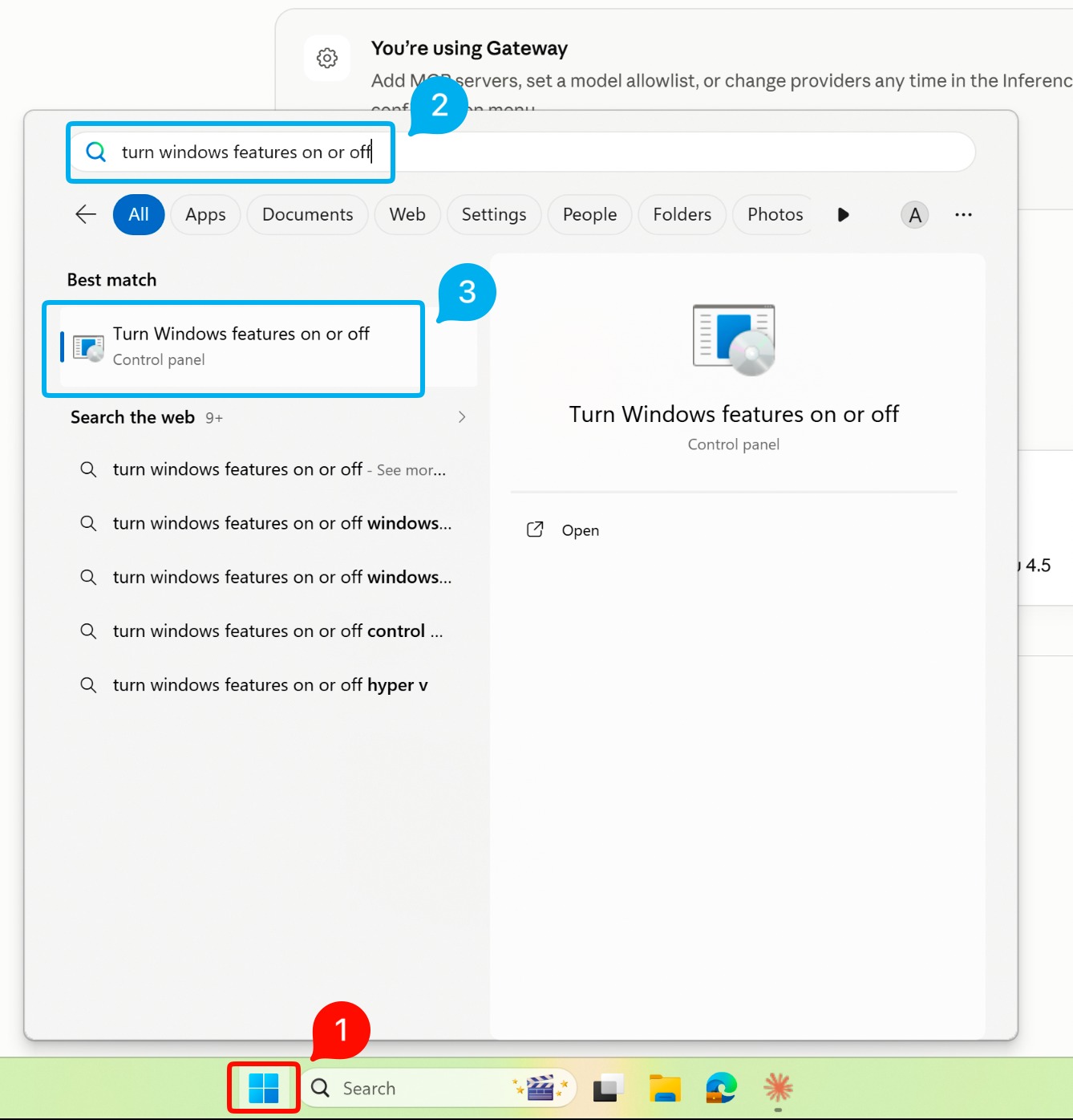
Open Windows Features
Press Start, search for Turn Windows features on or off, and open the matching Control Panel result.
Open full-size image - 6
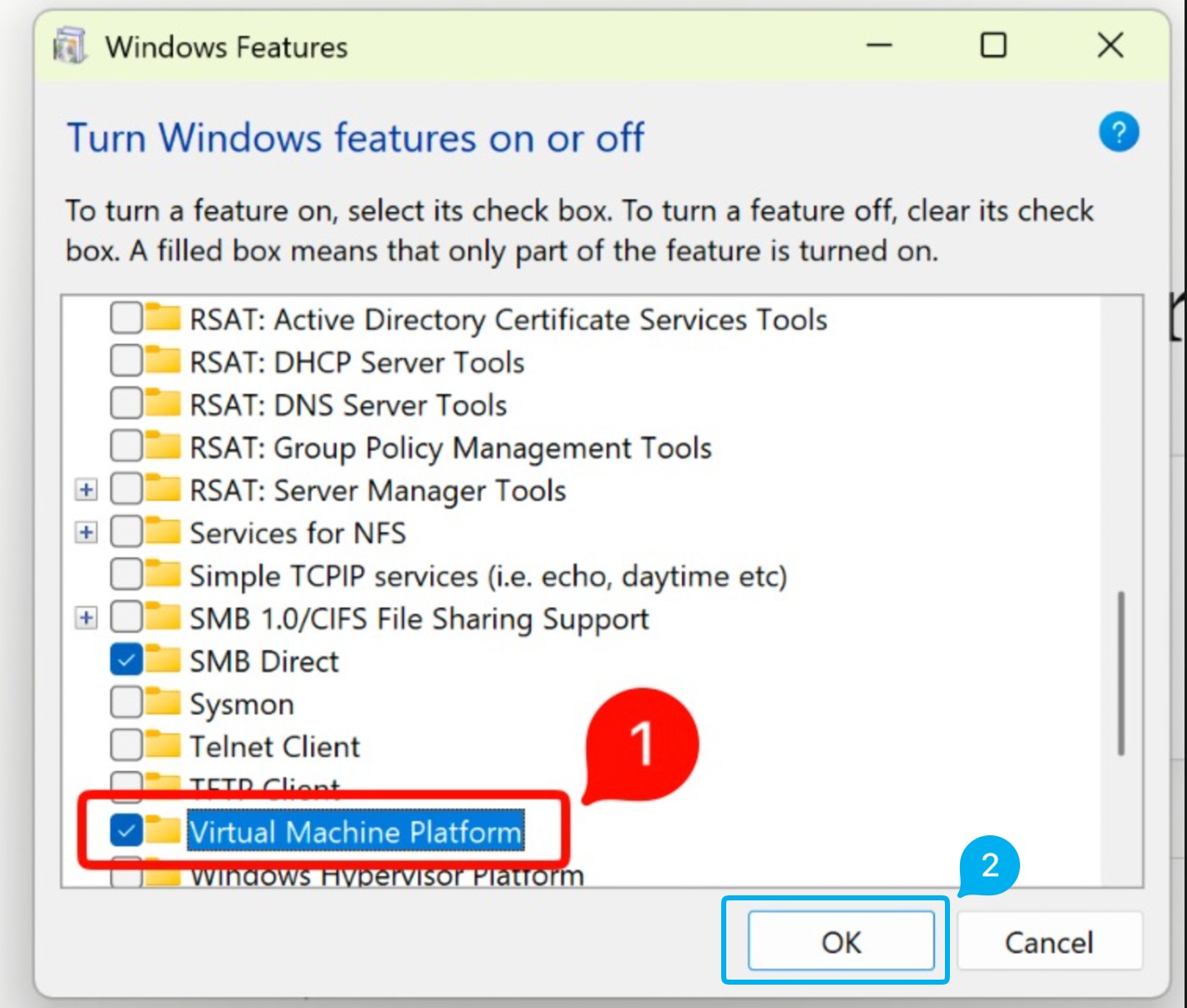
Select Virtual Machine Platform
Find Virtual Machine Platform, select its checkbox, and choose OK.
Open full-size image - 7
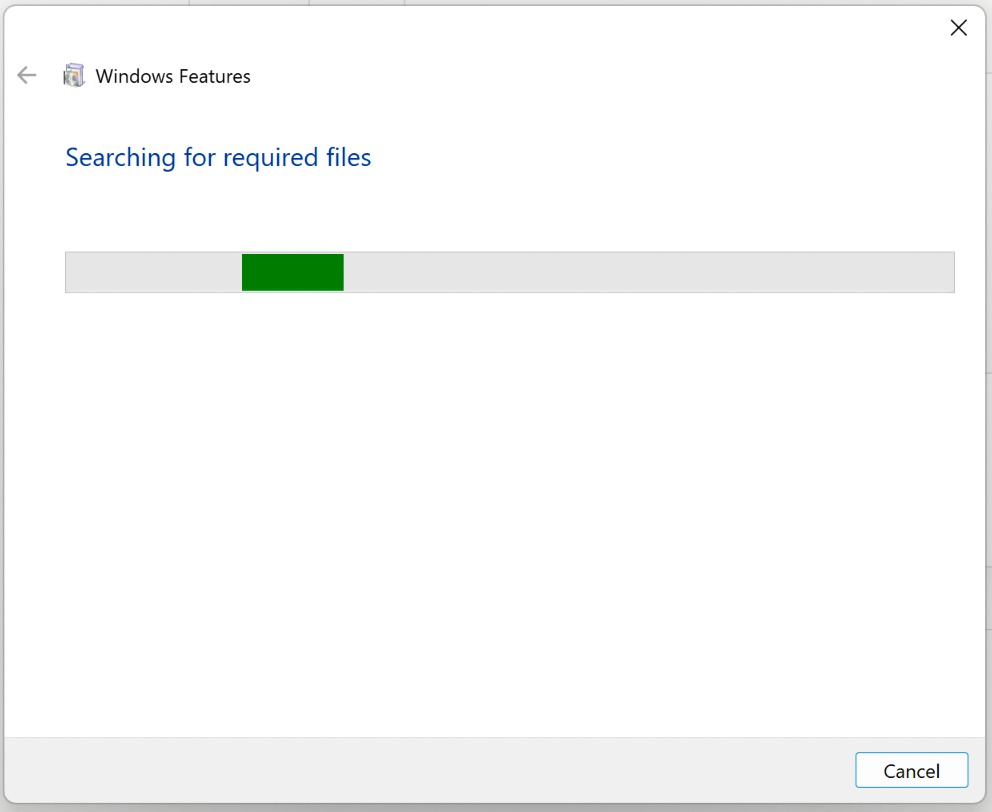
Wait for installation
Keep the Windows Features window open while Windows searches for and installs the required files.
Open full-size image - 8
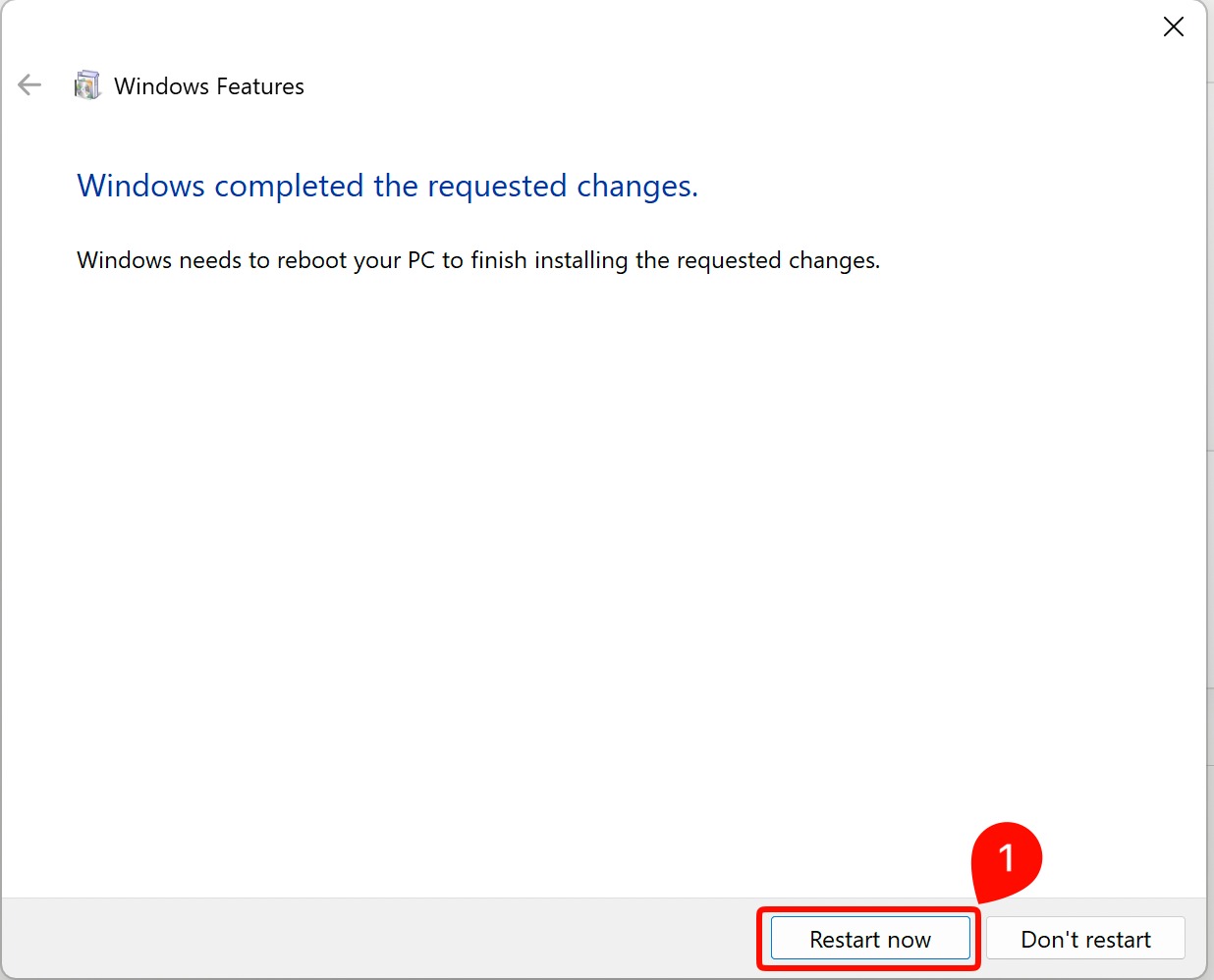
Restart Windows
When Windows confirms the changes are complete, choose Restart now. After the restart, reopen Claude Desktop.
Open full-size image
Connection settings at a glance
- Gateway base URL: https://api.smartplansil.com
- Credential kind: Static API key
- Gateway auth scheme: x-api-key
- Do not add /v1
- Keep optional origin and custom-header fields empty
Setup complete
After applying the connection, choose Third-party inference, Gateway, 3P or Cowork on 3P if Claude asks which mode to use.
Return to the Claude product page